Microsoft OneDrive: There was a problem - 0x8004de46

Microsoft OneDrive: There was a problem - 0x8004de46

Problem

We ran into the "Please try again in a few minutes. (Error code: 0x8004de46) error recently when testing the OneDrive client connecting to multi-geo regions. The client was looking to connect with non-default urls since the users "Preferred Data Location" or PDL was not our default region.  See error below from the OneDrive sync client.  Microsoft has a kb on this but for us it was network related as you'll see below.


Microsoft OneDrive - There was a problem signing you in.  Please try again in a few minutes. (Error Code: 0x8004de46)

For us, we have all our Office 365 clients using modern authentication (i.e. those ADAL regkeys) already setup and were sending network traffic directly to the internet (not via proxy) per Microsoft recommendations.  But guess what, we weren't doing that for the newer multi-geo urls which are xxx-my.sharepoint.com and found out that the network traffic was going through our proxy.

Troubleshooting

To confirm this, I did a fiddler trace of a working OneDrive client and a non-working client.  In short, you can see the client attempt to create a HTTPS connection which results in a 401 error.  As you can see the proxy was decrypting the traffic resulting in the OneDrive client error.

Client Not Connecting

Example of the client not connecting and client is seeing a 401 resulting in the error.


The "Issuer" is not Microsoft (Sorry I had to block it out but trust me!)


Client Connecting

Example of a client connecting properly.


And notice the "Issuer" associated with the tunnel is.Microsoft.


A side note on this,  I did see references to the errors below in the fiddler trace and saw some other solutions out there but since this was already working for our default region I was a little suspect that it would fix for us.  
  • MSDAVEXT_Error=917656; Access+denied.+Before+opening+files+in+this+location%2c+you+must+first+browse+to+the+web+site+and+select+the+option+to+login+automatically.
  • Access denied. Before opening files in this location, you must first browse to the web site and select the option to login automatically.

Solution

Long-term you will want to allow this traffic to route directly to the internet but in this case to get it working, we disabled decryption on all the "my.sharepoint.com" urls and we were back in business.  Moral of the story is follow best practices for Office 365 and bypass proxy when you can.

Slow and Choppy Day: Using Citrix Director and HDX Insight


When you’ve been supporting remote users, you hear it all.   Someone called the help desk or worse you.
“Not sure what it is but my vm is slow today?”
“My mouse just keeps wigging out?”
“Everyday from 3pm to 5pm it gets boggy?”
“I’m at my grandmother’s house today and nothing works.” (Yup…True story)

They are tons of great 3rd party monitoring tools out there and many would help you troubleshoot the issue.   We all wish we could buy them all but hey we are on a budget right!   So let’s use what we have.  For those that are running Citrix XenDesktop 7.x with the Platinum license, you have many of the tools and information to help your users specifically XenDesktop Director and NetScaler HDX Insight.  

Here is some key info to pass along to the Level 1 or 2 helpdesk staff.

The General Windows Stuff via Director
It is always a habit to pop open Task Manager or Resource Manager on Windows to check things out and this is still a great place to start even in a virtual environment. The nice thing is you can do it right from Director.    Check to see if something is “Not Responding”?  Something pegging?  Using a ton of memory?  Basic but always a good place to start.  


Session Details in Director
Do not overlook the info here. Often we jump right to the Latency and say must be some poor connection.   Often it can be…like your grandmother’s wifi she shares with all her condo friends.  But the  simple things like “Connected via” and “Launched via”  can tell you a lot of how the user is connecting too.  For example,  we’ve seen users who have VPN’d in first then connected via StoreFront to their XenDesktop vm or XenApp app.  This has added 100ms since they were VPN’ing in first.   “Launched via” may actually show your VPN controller or some other internal server signifying they are connecting from the “inside” but you know they are remote. Why the do this?  Because they always have done it that way.


Machine Details via Director
I usually look at Session Details first to get a sense of the users network conditions.  Assuming they are ok …say < 250ms … based on the issue, I look at the storage.  Storage has been an issue for VDI performance for a long time.  Many are moving to Flash Arrays and this is becoming less of an issue but still something to check as it can greatly contribute to a poor user experience.   In the example, below you can see the disk is queue up….no wonder nothing is happening.


NetSclarer HDX Insight
Again this advanced feature makes it possible to isolate and manage your ICA network performance.    When users are accessing remotely, the big challenge is determining if the issue is internal or external.  Remember that example where someone said everyday from “3-5am” it is slow.   The screenshot below isn’t flashy and at first glance is boring but it does show that the WAN latency has been consistent over the past week.   So maybe it isn’t your stuff that is causing the slowness.   Internet surge?  Partner’s WAN connection?


Hopefully this help give you a sense of how to use the information in Director and HDX insight to start that troubleshooting exercise.  No tool will flat out tell you the problem.   You need to look at the info and read those tea leaves a little.

Good luck.

Where can I download VMware Tools (vmtools.exe)?

I'm in the mists of updating my Citrix XenDesktop 7.5 Win 7 image and wanted to include the latest VM tools.  They are hard to find on the VMware download site but came across this site....

https://packages.vmware.com/tools/esx/index.html  

Pick your the ESX version and operating system and manually download away!

Citrix Desktop Studio: Found invalid data while decoding

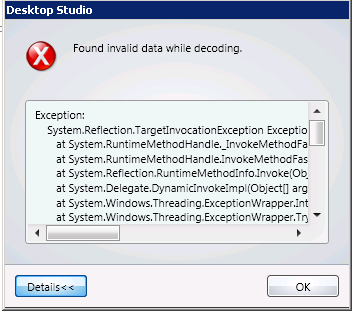
We just added another Citrix Desktop Deleivery Controller (DDC) 5.6 FP1 to our farm.   But when launching Desktop Studio on the new server and viewing HDX policy was blank and a refresh threw the following error:


The "Found invalid data while decoding" tipped me off that it couldn't read or render the polices from the database.  Low and behold we didn't have the same or latest Citrix Group Policy Management installed on the new DDC. So just closed Desktop Studio, installed them, and re-opened Desktop Studio and there they were. 

Citrix outlines it in in CTX1314601 for XenApp but applies to XenDesktop as well.  Citrix Group Policy Management comes with the latest XD install media as well.


Using Infoblox TFTP for Citrix PVS

People always say that "tftp is anything but trivial" and if you've implemented it, you know how true this is.  We have multiple Citrix XenDesktop and Provisioning Server farms were looking for a simple highly avaialble solution to provide TFTP to a dozen or more vlans.  Each PVS farm services 5+ or more vlans and used the solution outlined here to stream to multiple networks from one PVS server.  But how do you provide the TFTP boot file to all these networks?
 
Along came Infoblox TFTP and this is how we did it:
 
Infoblox TFTP Configuration and Setup (Recommend Infoblox version 6.6.5 or higher)
  • One TFTP service in each datacenter (total of 3)
  • Globally Load Balance URL using DNS Topology which would direct the client to typically request the boot file (ardbp32.bin) from the local TFTP server.
  • Created a virtual directory for each vlan/subnet (make sure to keep the folder name at 13 character or less - known bug.)
  • Create the ARDBP32.BIN files for each network using the Provisioning Services Console by:
    • Going to Servers > Right click on a Server > Select Configure Bootstrap > Config as needed and click Ok. 
    • Then grab the ARDBP32.BIN file from C:\ProgramData\Citrix\Provisioning Services\Tftpboot to upload to the Infoblox TFTP virtual directory. 
    • Repeat for each network.
    • Note: Another option is to rename the file and place in the root virtual directory (i.e. ARDBP32_123.BIN)
  • TFTP virtual directories replicate to other members in the Grid so you only need to upload to one virtual directory.
Infoblox DHCP Configuration and Setup (Recommend Infoblox version 6.7.3 or higher)
  • For each DHCP Scope, setup the following:
    • General > Advanced Tab > check off Ignore DHCP Client Unique Identifier (UID) when a new lease is requested if not inherited from Grid
    • IPv4 DHCP Options > Basic tab
      • Lease time should be at minimum of 1 day
    • IPv4 DHCP Options > Advanced Tab
      • Check off the Ignore optionlist requested by client and return all defined options if not inherited from Grid (Note: This resolves known issues with PVS targets having two preferred ip addresses.)
    • IPv4 BOOTP/PXE > Basic tab
      • Under BootP Settings
        • Boot File = ARDBP32.BIN (Note: This is case sensitive and needs to match the case used for the file in the TFTP virutal directory)
        • Next Server = GTM/GSLB alias/url (i.e. tftp.yourdomain.com) Note: you could simply testing by entered an IP address of the Infoblxo TFTP servers as well but that won't get you HA!)
    • In the Infoblox Grid Properties or Member Properties for DHCP, select the DNS Resolver tab, and then select Enable DNS Resolver. This allows DHCP to resolve the tftp.yourdomain.com alias and past an IP address to the client in the Next Server field.

A bunch of network traces and even a case or two and finally have it all working -  Highly Available TFTP for PVS!  Below is an example of how it all could work.


Note: If Infoblox is not at 6.7 or higher you may see these PXE errors on boot if your virtual directories are longer than 13 characters.

PXE-T04 Request not null-terminated
PXE-E36 Error received from TFTP server
PXE-M0F: Exiting Intel PXE ROM


Citrix PVS to multiple vlans

Citrix provides basic guidance on how to multi-home your Provisioning Servers (PVS) with CTX120955.  But what if you have multiple vlans for desktops in which you want to stream to?  Well this is how we did it.

Environment
Citrix XenDesktop 5.6.1 
Citrix Provisioning Server 6.1
VMware ESX 4.1 U1
Cisco Nexus 7000

Network/Firewall
A few things to point out.
- All vlans were separated by the firewall.
- Used one PVS farm for all desktop vlans.
- All firewall rules were setup to all outbound access to the DDC.

Citrix Provisioning Services (PVS) Setup
PVS Physical Server Specs
- HP DL380 (dual-core 48G RAM)
- 1G Network Team for management vlan access
- 10G Network Team for desktop vlans
- 2 x 146GB (RAID1) for OS
- 6 x 146G (RAID5) for local vDisk storage


We are using this PVS configuration for XenDesktop so...

  • the 1G team is for all PVS, DDC, SQL, AD, etc communication. 
  • the 10G team (streaming only) is setup using the HP Network Configuration Utility (NCU) and vlan tagging and has 5 desktop vlans on it. We could just have 1 vlan but each desktop vlan is segmented by a firewall and we don't want to stream through that which is why trunk down all the desktop vlans to the PVS 10G ports and configure with 802.1q so they are directly on the vlan. 

Citrix XenDesktop Setup
Each XenDesktop virtual desktop (VDA) has 1 vnic on a desktop vlan. 

TFTP Setup
There are a few options here but first we
- Had a pair of Citrix TFTP server(s) on each desktop vlan providing TFTP/PXE but...
- are moving to Infoblox TFTP services to provide this so we don't need all those TFTP servers.

It is seems overly complex but is fairly straight forward and best of all meets the requirements for desktop segmentation and allows you to manage only 1 PVS farm.

Interested to hear how you do PVS.

PVS: An unexpected MAPI error occurred

A lovely error Citrix Provisioning Services (PVS)  "An unexpected MAPI error occurred" error. Fortunately, Jeff found the fix and shared it here.  This is a bug in PVS 5.6.


Solution: In short, when you edit the properties of the PVS vDisk, set the disk status to Standard and select “MAK” on the Licensing TAB and press OK. Now you will not receive the error. Then set it back to KMS and click Ok.

ExecuteNonQuery Failed for database

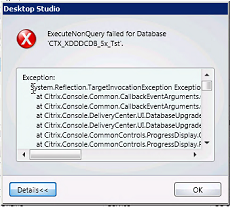
This error happened to us today as we were updating our XenDesktop 5.5 environment to 5.6.  I swear the DBAs changed the perms on us but found out the SQL database failed to the mirrored site.  Anyway it was an easy fix and Citrix even had an article...just fail them back. 

Lesson learned:  If you are usign SQL mirroring, make sure the SQL databases are on the primary node PLUS get some scripts in place to auto-fail back.
  
The Detail
Exception:
    System.Reflection.TargetInvocationException Exception has been thrown by the target of an invocation.
       at Citrix.Console.Common.CallbackEventArguments.OperationCompleteSynchronizer.CheckResults()
       at Citrix.Console.Common.CallbackEventArguments.OperationCompleteSynchronizer.WaitForResults()
       at Citrix.Console.DeliveryCenter.UI.DatabaseUpgrade.ApplyUpdateWithCredentials(UserCredentials credentials)
       at Citrix.Console.DeliveryCenter.UI.DatabaseUpgrade.ApplyUpgrade()
       at Citrix.Console.CommonControls.ProgressDisplay.GenericProgressOperation.PerformOperationInternal()
       at Citrix.Console.CommonControls.ProgressDisplay.ProgressWindowOperation.PerformOperation()
       at Citrix.Console.CommonControls.ProgressDisplay.ProgressWindowViewModel.PerformAction(ManualResetEvent operationComplete)
   
   
Inner exception:
    Microsoft.SqlServer.Management.Smo.FailedOperationException ExecuteNonQuery failed for Database 'XenDesktop_Database'.
       at Citrix.Console.InteractionCore.ThreadedScript.d__9.MoveNext()
       at Citrix.Console.InteractionCore.ScriptBase.d__1.MoveNext()
       at Citrix.Console.InteractionCore.Scheduler.ExecuteNext(ScriptExecution execution)
   
    HelpLink.ProdName : Microsoft SQL Server
    HelpLink.BaseHelpUrl :
http://go.microsoft.com/fwlink
    HelpLink.LinkId : 20476
    HelpLink.ProdVer : 10.50.1600.1 ((KJ_RTM).100402-1540 )
    HelpLink.EvtSrc : Microsoft.SqlServer.Management.Smo.ExceptionTemplates.FailedOperationExceptionText
    HelpLink.EvtData1 : ExecuteNonQuery
    HelpLink.EvtData2 : Database
   
Inner exception:
    Microsoft.SqlServer.Management.Common.ExecutionFailureException An exception occurred while executing a Transact-SQL statement or batch.
       at Microsoft.SqlServer.Management.Common.ServerConnection.ExecuteNonQuery(String sqlCommand, ExecutionTypes executionType)
       at Microsoft.SqlServer.Management.Common.ServerConnection.ExecuteNonQuery(StringCollection sqlCommands, ExecutionTypes executionType)
       at Microsoft.SqlServer.Management.Smo.ExecutionManager.ExecuteNonQuery(StringCollection queries, ExecutionTypes executionType)
       at Microsoft.SqlServer.Management.Smo.Database.ExecuteNonQuery(StringCollection sqlCommands, ExecutionTypes executionType)
   
   
Inner exception:
    System.Data.SqlClient.SqlException The database "XenDesktop_Database" cannot be opened. It is acting as a mirror database.
       at Microsoft.SqlServer.Management.Common.ConnectionManager.ExecuteTSql(ExecuteTSqlAction action, Object execObject, DataSet fillDataSet, Boolean catchException)
       at Microsoft.SqlServer.Management.Common.ServerConnection.ExecuteNonQuery(String sqlCommand, ExecutionTypes executionType)
   
    HelpLink.ProdName : Microsoft SQL Server
    HelpLink.ProdVer : 10.00.4000
    HelpLink.EvtSrc : MSSQLServer
    HelpLink.EvtID : 954
    HelpLink.BaseHelpUrl :
http://go.microsoft.com/fwlink
    HelpLink.LinkId : 20476

Citrix Logon Best Practices and Troubleshooting


This just came out and thought it was timely for some things I'm working on.
Best part was Troubleshooting Tools section on page 12 that covered the Edgesight Session Startup Duration Detail report/breakdown of the logon process.  This report would also be a good validation tool with each vDisk rev, Profile or GPO changes. All the acronyms below correspond to different steps in the login process so you can pin point the area that is slow (i.e. web interface, login script, etc). This is handy paper to keep around in case you need it.

Edgesight Server Startup Details

Citrix Success Accelerator for XenDesktop

If you haven't seen Citrix's new Success Accelerator for XenDesktop, you should check it out before doing any size deployment (i.e. 10 to 1000s).  I wish we had this 12 months ago when we started our pilot.  It is in a Q&A format and gets you thinking about all the technologies involved and what choices you may need to make. It will walk you through the Design, Implementation and Rollout phases and provide an output of instructions and resources for your project.  Definitely check it out.

Screenshot of the web ui is below.


Pink screen after Xenith Firmware 1.7 upgrade

I ran into this after upgrading our Wsye Xenith from 1.6 to 1.7 firmware. We were using the AutoSignoff=yes Shutdown=yes commands in our ini and after users devices were powered down then up again were seeing this.  Ironically, it didn't occur on the Xenith Pro's.


To reproduce:
1. Apply firmware 1.6
2. Upgrade to 1.7
3. Shutdown from Wyse Toolbar
4. Power on and the issue occurs

To resolve:
1. While shutdown, pull power supply
2. Start up.

OR add this to your xen.ini or wnos.ini
AutoSignoff=yes Shutdown=yes
ShutDown=turnoff 

This appears to be a known issue with no good documented solution so hopefully this helps.


DPM 2010 and Juniper SRX Firewall

SharePoint 2010 is all the rage (still) and products are finally maturing enough where you don't need best of breed to get everything done. We recent started rolling Microsoft's Data Protection Manager (DPM) 2010 to do our SharePoint 2010 back ups. DPM 2007 recovery process through a "recovery farm" is a thing of the past with DPM 2010 so the timing was right. So we choose DPM 2010 as our backup/recovery strategy and implemented it fine on the intranet but then....yes we need SharePoint 2010 on the extranet so DPM 2010 followed and so did the firewall....

I followed the ports outlined by Microsoft and cringed a little with the 135 TCP Dynamic reference and the somewhat legal jargen below it. Anyone who has worked with Microsoft and sees DCOM, RPC or the phrase "port range" knows what I mean when I say cringe. I found this article recently by Thomas Shinder and while a little older the diagrams illustrate network traffics behavior for RPC traffic. Since all our servers are Windows Server 2008, the high port range is ONLY the TCP 49152 – 65535. Yes only 16,000 ports which makes my security team cringe as well.

Our environment:
- All Windows Server 2008 or 2008 R2 64bit
- DPM 2010
- SharePoint 2010
- Juniper SRX Firewall

So assuming you have proper communication to your Domain Controller from your windows servers, what are the options:
 

1. Open 135 TCP Dynamic, 3148/3149 TCP, and open the port range if not respected by the firewall as dynamic
 Pros: Easy...just open the ports
 Cons: Lots of ports open


2. Create an IPsec tunnel between DPM and the Protected Servers (see this for more info)
 Pros: Open only a few ports
 Cons: Need to maintain IPsec policy via local or group policy on all DPM and Protected Servers


3. Change the RPC port range
 Pros: Easy to change via registry
 Cons: It affects ALL RPC traffic not just DPM's PLUS need to maintain on all DPM and Protected Servers


4. Open 3148/3149 TCP and leverage MSDPM UUIDs
 Pros: Set it and forget it
 Cons: Hard to find the UUID without looking through traces or googling a lot.


So we when with number #4. We dealt with Active Directory communciation through our Juniper firewalls a few years ago and remembered the UUID model. So I started searching and came across Steve Buchanan write-up and while for ISA, Juniper has the same functionality. Long story short, we implemented a Global UUID Services with the following on our Juniper SRX Firewall:

MSDPM AC:
{C4EBD674-1457-4B79-BE30-B04735AED9D1}
{A3B9D3F4-2477-4F95-B2D1-F75B0FDF2A2F}


DPM RA:{DA6AA17A-D61C-4E9C-8CEA-DB25DEA52A95}
{2DF31D97-33CC-4966-8FF9-F47C90F7D0F3}


MSDPM:
{27F60283-447F-4D5F-AA84-F45D09BD06EF}
{8D8C691A-AFE6-4EA3-A6B2-F3E5EF1BD0CA}


DPM LA:{1B308A4A-FFEC-4C85-957C-53AA1DCC696F}
{9E6C5356-B180-4295-888C-5A99E505420F}


RPC interface UUID for IRemoteSCMActivator
{000001A0-0000-0000-C000-000000000046}


RPC interface UUID for IObjectExporter
{99fcfec4-5260-101b-bbcb-00aa0021347a}


RPC SMB Relay type bind
{6cb71c2c-9812-4540-0300-000000000000}

Microsoft NDR Transfer Syntax Identifier
{8a885d04-1ceb-11c9-9fe8-08002b104860}

The last four I'm thinking are covered under ISA's default 135 TCP Dynamic configuration so they were additional on the SRX.

** Some of the errors you'll see if firewall is blocking traffic to the protected servers (when you are "attaching" an agent).  Just run a trace on the DPM server using Wireshark or Netmon and look for ReSynTransmits over the TCP 49152 – 65535 range.

Install protection agent on SERVERA.lmx.abc.com failed: Error 346: DPM is unable to retrieve the configuration information from SERVERA.abc.com. Recommended action: Ensure that the Windows Management Instrumentation (WMI) service is started. If the firewall is turned on, on SERVERA.abc.com make sure that an exception for WMI is created.

The RPC server is unavailable (0x800706BA)

Good luck..and chances are it is the firewall! 

XenDesktop ESXi Permissions

Background:
Jarian Gibson has a great post here on all the VMware ESX permissions needed for XenDesktop Desktop Delivery Controller (DDC) to communciate with the VMware ESXi VirtualCenter.  I ran into one issue below, using the Citrix Provisioning Services XenDesktop Wizard and had to add "Virtual Machine > Configuration > Change CPU count which is the attribute "VirtualMachine.Config.CPUCount".


Environment:
Citrix XenDesktop 5 SP1
Citrix Provisioning Services 5.6 SP1
VMware ESXi 4.1 Update 1


Problem:
Error There was an error reported by the wizard
[VDI-NonProd-XXXX] Failed to connect with the requested server. (Permission to perform this operation was denied. (NoPermissionFault)(group-v51VirtualMachine.Config.CPUCount) )


Solution:
I was getting the error above but after adding the Change CPU count option it was fixed.  Detailed permissions are outlined below.


ESXi 4.x Perms
At the Datastore node
-   Allocate space
-  Browse Data Store
- Low level file operations
On the Global Node
-  Manage custom attributes
- Set custom attributes
On the Network node
- Assign network
On the Resource node
- Assign virtual machine to resource pool
On the Task node
- Create Task

On the Virtual Machine > Configuration node
- Add existing disk

- Add new disk
- Change resource
- Remove disk


On the Virtual Machine > Interaction node
- Power On

- Power Off
- Power Suspend
- Power Reset
On the Virtual machine > Inventory node
- Create from existing
- Create new
- Register
- Remove
On the Virtual machine > Provisioning node
- Allow disk access
- Allow virtual machine download
- Allow virtual machine files upload
- Clone template
-  Clone virtual machine
- Deploy template
On the Virtual machine > State node
- Revert to snapshot

Citrix PVS: domain/user does not have access to farm

Background:  I saw a bunch a folks having issues accessing the Citrix Provisioning Services (PVS) console after installing it and then uninstalling, reinstalling, changing service accounts etc to get access.  See this forum.  I think the problem is simply setting up the security groups in PVS.

Problem/Errors: When trying to access the PVS console get the following error(s):

"The domain/user does not have access to the farm:


"An error occured communicating with the server."


Solution: You need to add the security groups in the PVS console

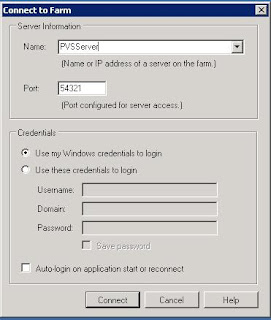
1. On PVS server, launch PVS console
-  Enter "localhost"
- Select "Use these credentials to login" and enter the account used to install PVS
- Click Connect

2. Right click on the Farm
- Select Properties > Groups tab.
- Type the AD group name and select Search (tends to hang so be patience; if it throws a Snap-in error select "Cancel")
 - Check off the white box to left of the group
- Click Ok
- Go to Security Tab
- Click Add
- Check off the white box to left of the group
- Click Ok
- Click Ok
3. Close PVS Console
4. Relaunch PVS Console
- Specify Name (ie localhost, ip, DNS, or FQDN as all should work)
- Select "Use my Windows credentials to login
 Also, once into the console you can manage your connections by right clicking on "Provisioning Services Console" and selecting "Manage Connections".

XenDesktop 5 and Database Mirroring

Background:
We setup our two XenDekstop 5 Desktop Delivery Controllers (DDC) and then configured our new DDC SQL database to be mirrored.  As result, you must update the DDC's database connection.

A side note, you don't need to do this for Provisioning Services (PVS) since you can specific the failover mirror in the install wizard.  As result, just follow the PVS db setup best practices and the mirror ahead of time and your are all set. 

Additional Info:


Change XD5 Database Connection
http://support.citrix.com/article/CTX127538


DB Mirroring Best Practices
http://support.citrix.com/servlet/KbServlet/download/25938-102-649422/XD_Database_Mirroring_Best_Practices.pdf


PowerShell SDK Download
http://www.microsoft.com/downloads/details.aspx?displaylang=en&FamilyID=50633a1f-a665-425d-923c-1a269f8ac084
 
Our solution:
  1. Run Windows Powershell Module
  2. Run set executionpolicy unrestricted
  3. Run get-BrokerDBConnection (to see current connection)
  4. Run the following powershell cmdlet (Just replace the server names and database name in bold).
$MirroredConnectionString =
'Server=SQLServerA.test.com;Initial Catalog = CTX_XDDDC_5x; Integrated Security = True;
Failover Partner=SQLServerB.com'


$brokers = Get-BrokerController
foreach ($broker in $brokers)
{
$brokerDNSName = $broker.DNSName
Set-ConfigDBConnection –DBConnection $null –adminaddress $brokerDNSName
Set-ConfigDBConnection –DBConnection $MirroredConnectionString –adminaddress $brokerDNSName
Set-AcctDBConnection –DBConnection $null –adminaddress $brokerDNSName
Set-AcctDBConnection –DBConnection $MirroredConnectionString –adminaddress $brokerDNSName
Set-BrokerDBConnection –DBConnection $null –adminaddress $brokerDNSName
Set-BrokerDBConnection –DBConnection $MirroredConnectionString –adminaddress $brokerDNSName
Set-HypDBConnection –DBConnection $null –adminaddress $brokerDNSName
Set-HypDBConnection –DBConnection $MirroredConnectionString –adminaddress $brokerDNSName
Set-PvsVmDBConnection –DBConnection $null –adminaddress $brokerDNSName
Set-PvsVmDBConnection –DBConnection $MirroredConnectionString –adminaddress $brokerDNSName
Set-ProvDBConnection –DBConnection $null –adminaddress $brokerDNSName
Set-ProvDBConnection –DBConnection $MirroredConnectionString –adminaddress $brokerDNSName
}


You only need to run this on one DDC.  To confirm that that the change took place.  Run get-BrokerDBConnection to see the update connection.

Slow Citrix XenDesktop 5 and XenDesktop 5 SP1 MMC

Slow Citrix XenDesktop 5 and XenDesktop 5 SP1 MMC when launching Desktop Studio

Problem: XenDesktop 5 Desktop Studio launches slowly and snap-in fails to load and/or get the following error(s):

"Adding snap-in to console"


"This snap-in not responding"


Note: Also, I have seen this in Provisioning Services (PVS) as well


Resolution:  Go to IE > Tools > Internet Options > Advanced and uncheck "Check for publisher’s certificate revocation" in security section.